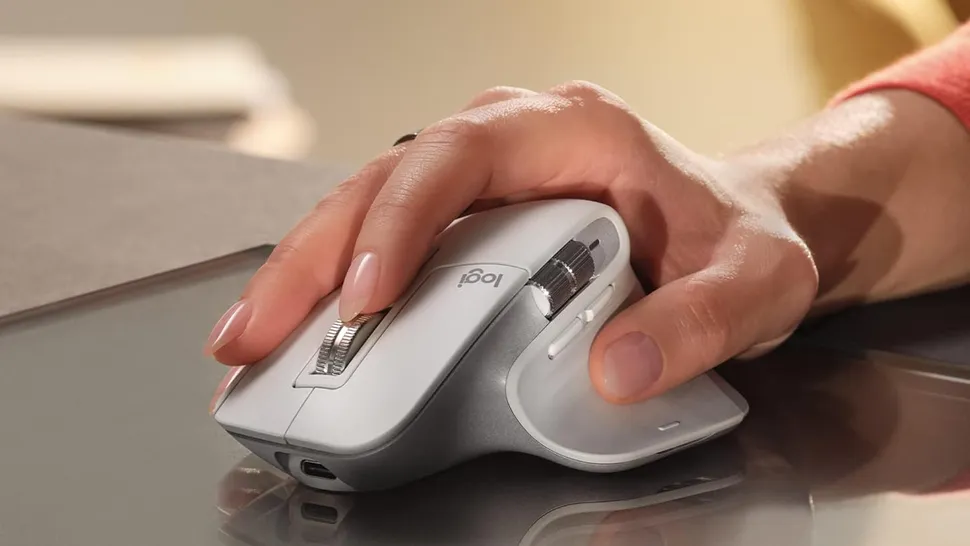
A work mouse used to be a plain desk tool: point, click, scroll, repeat until your wrist complained. That standard is starting to feel old. The MX Master 4 is aimed at people who move between documents, meetings, tabs, design panels, spreadsheets, and AI tools all day, and who lose time in tiny hand motions they stopped noticing. Logitech’s newest flagship adds haptic feedback, Actions Ring shortcuts, stronger wireless hardware, and deeper software controls to make desk work feel less mechanical and more intentional. Logitech introduced the mouse on September 30, 2025, with haptics, a Logi Options+ Actions Ring, an 8,000 DPI sensor, quiet clicks, and a $119.99 U.S. price.
For American office workers, creators, analysts, students, and remote teams, the story is not “a mouse got smarter.” The better story is that the mouse is becoming a small control surface for modern work. If you follow product launches through consumer tech updates, this one matters because it sits right where software habits are changing. People are asking AI to summarize, rewrite, clean data, plan slides, and draft replies. A mouse that makes repeated commands faster can turn those habits from extra steps into muscle memory.
Why the New Logitech Flagship Feels Built for the AI Desk
The current desk setup has a strange problem. The apps are getting smarter, but the daily motions are still dumb. You can ask an AI assistant to condense a report, yet you may still dig through menus, copy text, resize windows, hunt for a button, paste into another panel, and repeat the same chain ten times before lunch. That gap is where Logitech seems to be pushing its newest mouse.
The real upgrade is fewer broken moments
Most people do not lose a workday in one dramatic failure. They lose it in small cuts. A designer switches from Photoshop to Slack, then back to a browser. A sales manager copies call notes into a CRM. A finance analyst opens Excel, checks a dashboard, grabs a number, and drops it into a deck.
None of that sounds hard. That is the trap.
The new mouse leans on the Actions Ring, a digital overlay inside Logi Options+, to place app-specific shortcuts near the cursor. Logitech says the feature can help users save up to 33% of time across tested desktop actions and reduce repetitive mouse movements by up to 63%, though the company’s own note says results depend on assigned shortcuts. That caveat matters. The tool is only as good as the habits you build around it.
The non-obvious point is that the best AI workflow features are often not the ones that “think.” They are the ones that remove the pause before thinking. A shortcut that opens a prompt panel, triggers a formatting step, or calls up a common command can keep your attention from leaking away.
AI work needs control, not more noise
AI tools can add speed, but they can also add clutter. A browser extension here, a writing panel there, a meeting summary tab, a screenshot tool, a prompt library, and a project doc can make your desktop feel like a junk drawer with a login screen.
That is why a physical control matters. It gives the workflow a home.
A haptic feedback mouse does not replace judgment. It gives your hand a tiny confirmation that something happened. Logitech describes the 4 as its first MX mouse with customizable haptics, delivering tactile cues for actions such as scrolling, navigation, and selection. That sounds minor until you are editing a long proposal at 4:40 p.m. and need the tool to disappear under your hand.
For a U.S. remote worker using ChatGPT, Google Docs, Notion, and Zoom in the same hour, the value is not glamour. It is less friction. You can read more about shaping a better workstation in home office productivity tools, where the same idea applies: the best gear earns its place by lowering the number of decisions you make.
How MX Master 4 Turns Shortcuts Into Real Work Speed
The danger with premium mice is feature stuffing. Extra buttons can sound impressive on a box and still go untouched for two years. The difference here is that Logitech is not only adding inputs. It is trying to make those inputs easier to remember, easier to feel, and easier to match to the app you are using.
The Actions Ring fits how people work now
The Actions Ring is the clearest sign that the mouse is moving beyond old button mapping. Instead of asking you to memorize every button assignment, it brings a shortcut overlay to the cursor. That makes sense for workers who jump between different kinds of tasks.
A video editor may want timeline commands. A spreadsheet user may want paste values, format cells, or freeze panes. A marketer may want screenshot capture, text cleanup, and quick access to a brand folder. Logitech’s launch notes mention assigning commands in Photoshop and automating functions in Excel as examples.
This is where Logi Options+ shortcuts become more useful than plain keyboard commands. Keyboard shortcuts are fast once learned, but they can be hard to remember across many apps. A cursor-based ring lets the shortcut live near the work itself. That matters for mixed-role workers: the person who edits a Canva graphic, checks GA4, writes a client email, and builds a slide before the meeting starts.
The counterintuitive lesson is that speed is not always about doing one thing faster. Sometimes it is about returning to the task faster after a tiny interruption.
Smart Actions make repeated tasks feel less manual
Logitech’s Smart Actions feature in Logi Options+ can automate multiple steps with a single click or keystroke, and the company offers ready-made templates that users can edit. That opens the door for routines that match common desk work.
Think about a customer support lead in Dallas. Every morning, she opens Gmail, the help desk, a dashboard, a saved response doc, and a team chat. A Smart Action could open the needed apps or trigger a starting sequence. Later, another shortcut could paste a standard response, move a window, and start a follow-up note.
Will every user build custom routines? No. Many will ignore half the software.
Still, the people who do build two or three good routines may get the real payoff. AI workflow features become more useful when paired with repeatable actions: capture text, send it to a writing tool, open the result, and move it into the right place. The mouse is not writing the response. It is trimming the road to the response.
Haptics, Wireless Strength, and Comfort Matter More Than the AI Label
A mouse can promise smart work all day, but it still has to feel right at 9:15 p.m. The old rules have not vanished. Comfort, battery life, scroll feel, click noise, tracking, and connection quality still decide whether a tool stays on the desk or ends up in a drawer.
Tactile cues make software feel less flat
Screens are flat by nature. Every button, slider, tab, and menu sits behind glass or pixels. Haptics add a small physical answer to a digital action. Logitech says the mouse supports haptic feedback for Options+ features such as Actions Ring, Smart Actions, and gestures, and it can add haptic feedback at specific Smart Actions steps.
That could help in small ways. When you switch desktops, call up a shortcut ring, or choose an action, your thumb feels a cue. It is not life-changing. It is steadier than silence.
Windows users get an extra angle. Logitech says the mouse supports native Advanced Haptics on Windows 11 for actions such as aligning objects in PowerPoint and snapping or resizing windows, with the feature tied to a Windows 11 update from late March 2026 onward. Logitech also said in May 2026 that users could update the mouse to feel haptic effects during those Windows actions, with more effects planned for Windows and third-party apps.
That makes the haptic feedback mouse idea more than a novelty. It gives software makers a new way to signal precision. For anyone building slides, editing layouts, or arranging windows on a large monitor, that small bump can tell your hand the object landed where it should.
The boring specs are the ones you feel daily
People get pulled toward the AI label, but the quieter hardware choices may matter more in daily use. Logitech lists an 8,000 DPI sensor that can track on glass, quiet clicks with 90% less noise than the MX Master 3, a MagSpeed scroll wheel rated for up to 1,000 lines per second, and a battery claim of up to 70 days on a full charge.
Those are not flashy in the social-media sense. They are desk-life details.
A quiet click matters in a shared apartment or open office. Long battery life matters when your charger is across the room and a client call starts in six minutes. Stronger wireless matters in a coworking space where half the room has Bluetooth devices, keyboards, earbuds, and docking stations running at once.
Wired’s review notes that the mouse keeps the familiar large right-handed shape, adds haptic feedback around the thumb controls, uses a USB-C Logi Bolt dongle, and still has a 125 Hz polling rate rather than the higher rates common in gaming mice. That last point is useful. This is a productivity tool first. If your night job is fast shooter gaming, a lighter gaming mouse may still be the better pick.
Who Should Buy It, Who Should Wait, and What to Check First
The smartest buyer is not the person who wants every new feature. It is the person who knows which daily pain the feature solves. The new Logitech mouse makes the most sense for users whose work repeats across apps, commands, documents, and screens.
It suits heavy desk workers, not everyone
A remote project manager in Chicago may get more value from this mouse than a casual laptop user who checks email twice a day. The same goes for a creator editing batches of photos, a developer switching between code and docs, or a consultant living in Excel and PowerPoint.
That is the target: people with repeatable work patterns.
TechRadar praised the mouse’s productivity tools and battery life, but also noted that it is bulky, heavy at 152 grams, not ideal for gaming, and not made for left-handed users. That makes the buying choice clearer. If you want a light travel mouse, this is probably not it. If you use a left-handed setup, the shape alone may remove it from your list.
The non-obvious buying tip is to think less about the mouse and more about your top five repeated actions. Do you resize windows all day? Move between three machines? Use app-specific commands? Trigger AI summaries, rewrite prompts, or file cleanup routines? If yes, the mouse has room to earn its price.
The setup decides the value
Premium productivity gear often fails because people never set it up. They plug it in, admire the feel, and use it like a $20 mouse. That would waste much of the point here.
Start with one app. For many Americans, that might be Chrome, Excel, PowerPoint, Photoshop, Slack, or Zoom. Set the Actions Ring around the commands you repeat enough to feel them in your wrist. Then add one or two Smart Actions. Stop there for a week.
Too much customization on day one becomes homework.
For a writer, that could mean shortcuts for copy, paste without formatting, screenshot, split screen, and opening a prompt note. For a finance worker, it could be paste values, freeze row, find, format as table, and export PDF. For a designer, it might be brush size, zoom, hand tool, export, and layer actions. The best setup feels personal but not fussy.
For more buying context, a guide like best accessories for remote work can help place this mouse beside keyboards, monitors, webcams, docks, and chairs. The mouse should not carry the whole setup. It should make the rest of the setup easier to use.
Conclusion
The new Logitech flagship is not worth buying because it has a fashionable feature list. It is worth considering because it takes the messy parts of modern desk work and gives your hand more control over them. That is a better promise than hype.
The MX Master 4 makes the strongest case for people who work across apps, build repeatable routines, and already feel slowed down by tiny motions. Its haptics, Actions Ring, Smart Actions, strong battery claims, and Windows 11 tactile support point toward a future where the mouse is less of a pointer and more of a command center. The AI angle works only when it supports your real habits.
Do not buy it because the box sounds smart. Buy it if you can name the actions it will remove from your day. Then set it up with care, give your hand a week to learn it, and let the quiet speed build from there.
Frequently Asked Questions
How much does the new Logitech productivity mouse cost in the USA?
The U.S. launch price is $119.99 for the standard model, based on Logitech’s announcement. Retail prices can move during sales, so buyers should compare Logitech, Amazon, Best Buy, and office supply stores before paying full price.
Is it worth upgrading from the MX Master 3S?
It can be worth it if you want haptics, the Actions Ring, stronger wireless hardware, and deeper shortcut control. If your current mouse already feels perfect and you rarely customize buttons, the 3S may still serve you well.
What are the best AI workflow features for office users?
The strongest features are shortcut-based: Actions Ring, Smart Actions, app-specific controls, and haptic cues. They help you trigger repeated steps faster, which can support AI tasks like rewriting text, summarizing notes, or organizing copied content.
Does the mouse work well with Windows 11?
Yes, it supports Windows use, and Logitech has added native Advanced Haptics support for some Windows 11 actions. That includes tactile feedback for tasks like snapping windows and aligning objects in PowerPoint, depending on updates and settings.
Is this mouse good for gaming after work?
It can handle slower casual games, but it is not the best pick for fast gaming. The weight, productivity shape, and 125 Hz polling rate make it better suited to office work than competitive shooters.
Can left-handed users use this Logitech mouse comfortably?
Most left-handed users should look elsewhere. The shape is built for right-handed use, with thumb controls placed on the left side of the mouse body. That design is part of its comfort for right-handed users.
How does haptic feedback help in daily work?
Haptic feedback gives your thumb a small physical cue when you trigger certain controls. It can make shortcut rings, gestures, and supported Windows actions feel more precise, especially when you are moving fast between apps.
What should I set up first after buying it?
Start with one app you use every day, then assign five actions you repeat often. Add one Smart Action after that. A small setup you remember is better than a crowded shortcut system you abandon after two days.